company stands for your workspace name. Both custom domains are available on
all paid plans.
Use two different domains: the interface and the tracking domain serve
different purposes.
Good choices for the interface domain: app.company.com, panel.company.com,
affiliates.company.com, partners.company.com.
Good choices for the tracking domain: trk.company.com, go.company.com,
track.company.com, t.company.com.
Add the domain to Cloudflare
We strongly recommend managing both domains in Cloudflare. It is free, protects the domain against basic DoS/DDoS attacks, issues the SSL certificate and lets you finish the setup without contacting Scaleo Support.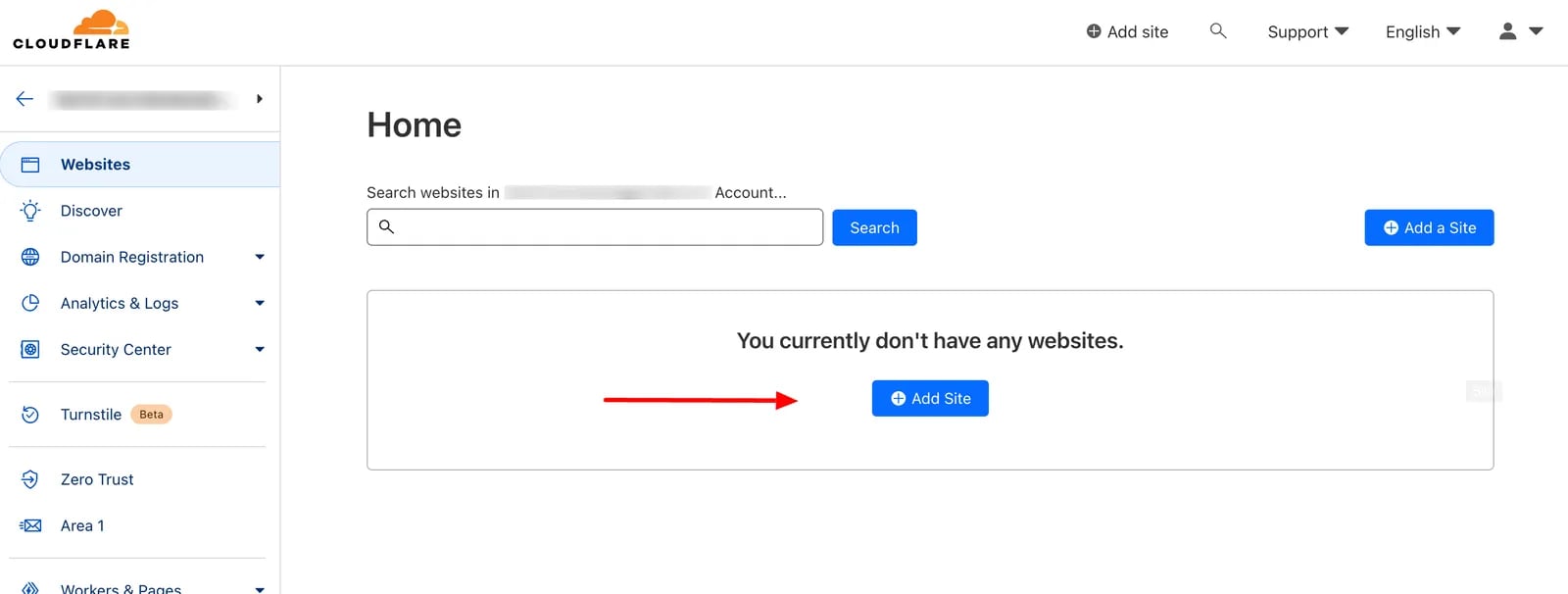
1
Add the site
Sign up in Cloudflare and add your domain with Add Site.
2
Pick a plan
Any plan works; Free is enough to start. Paid plans add chat support and
advanced DDoS protection, which are useful but not required.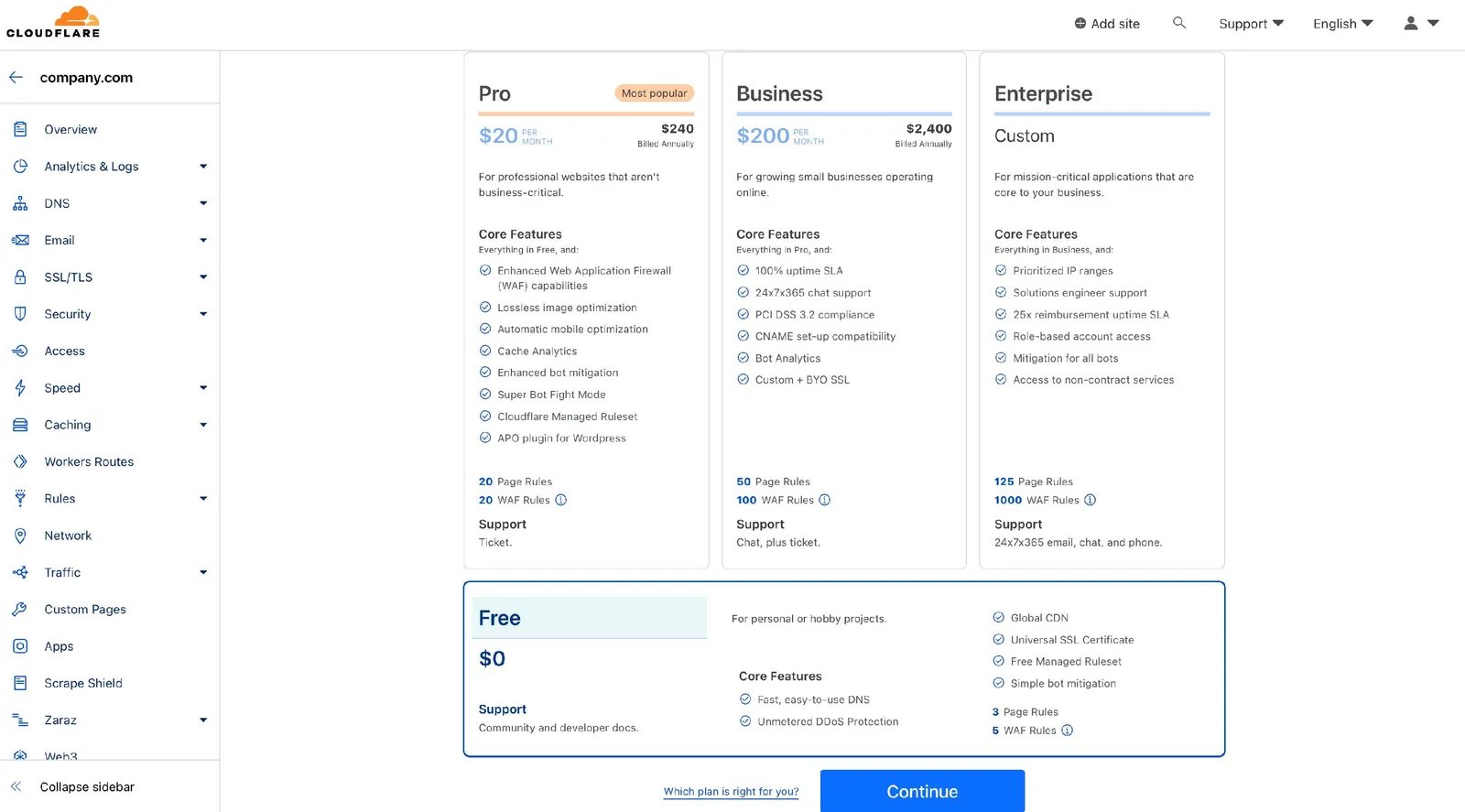
3
Change the nameservers
The Overview section of the site lists two Cloudflare nameservers. Log in
to your domain registrar (find it with
ICANN WHOIS), add both
Cloudflare nameservers, remove all others and save. The change can take up
to 24 hours to apply.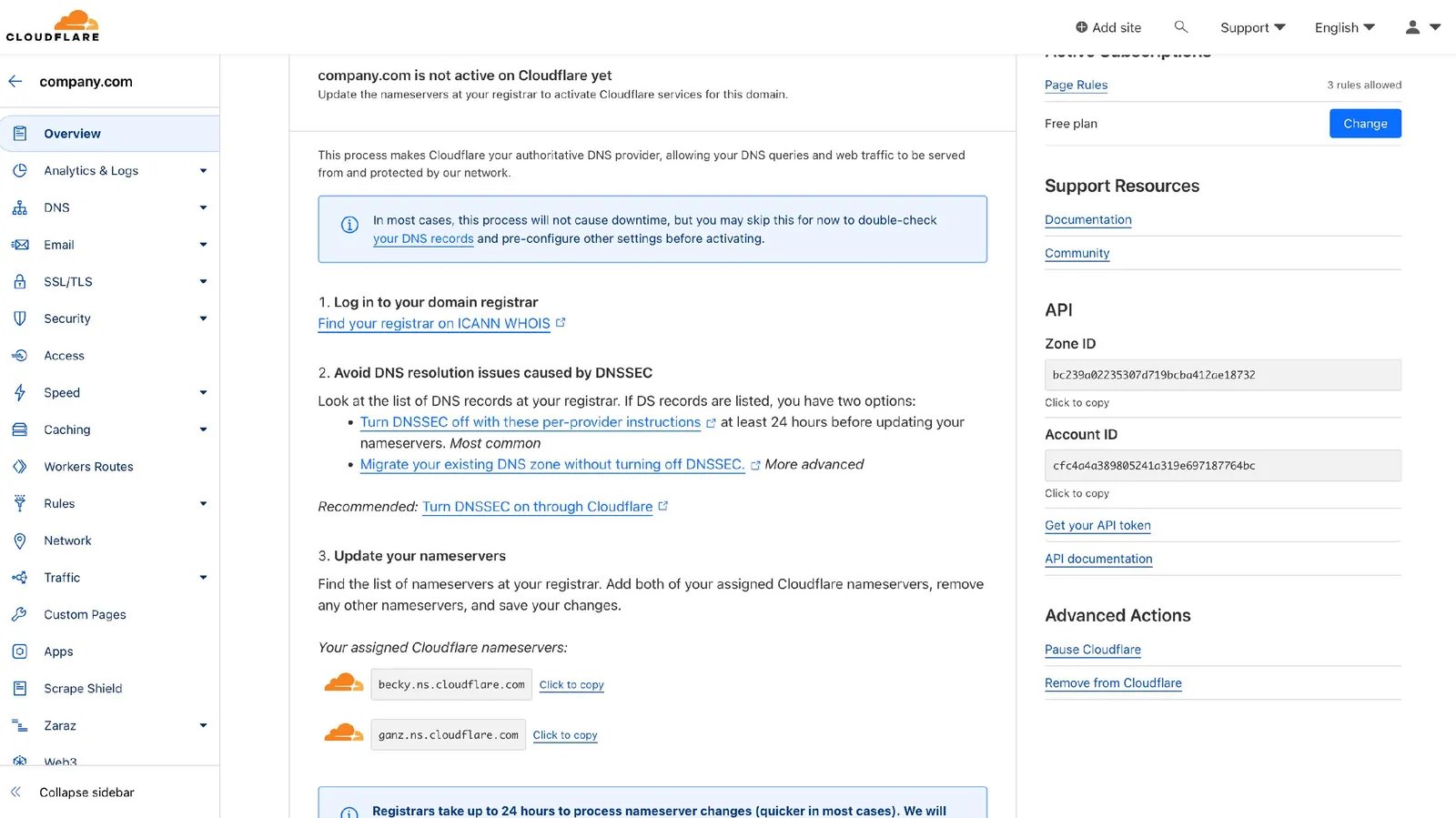
If you cannot use Cloudflare, Scaleo Support can help you set the domain up
without it, but we do not recommend this.
Point the domains to Scaleo
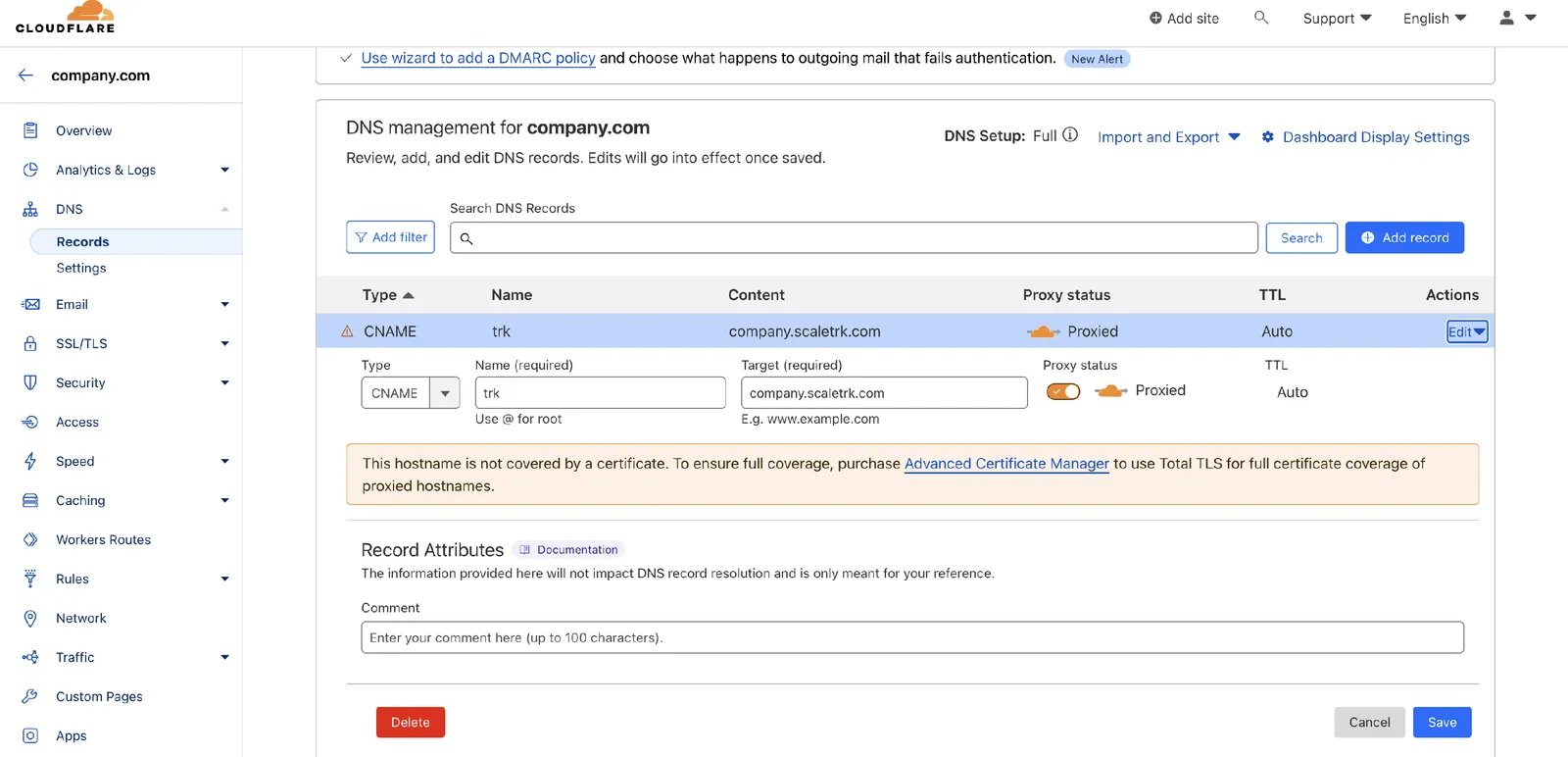
In the DNS records of your domain (in Cloudflare, or at your registrar), add a CNAME record for each custom domain:
Take the exact targets from Settings → Domains: the interface target is
your default interface domain, the tracking target is the CNAME shown under
Use a Custom Tracking Domain.
The tracking CNAME target (
company.scltrk.com) differs from the default
tracking domain (company.scaletrk.com): point custom tracking domains to
the CNAME target, not to the default domain.If your domain is managed outside Cloudflare, contact Scaleo Support for the
additional CNAME records.
Enable SSL
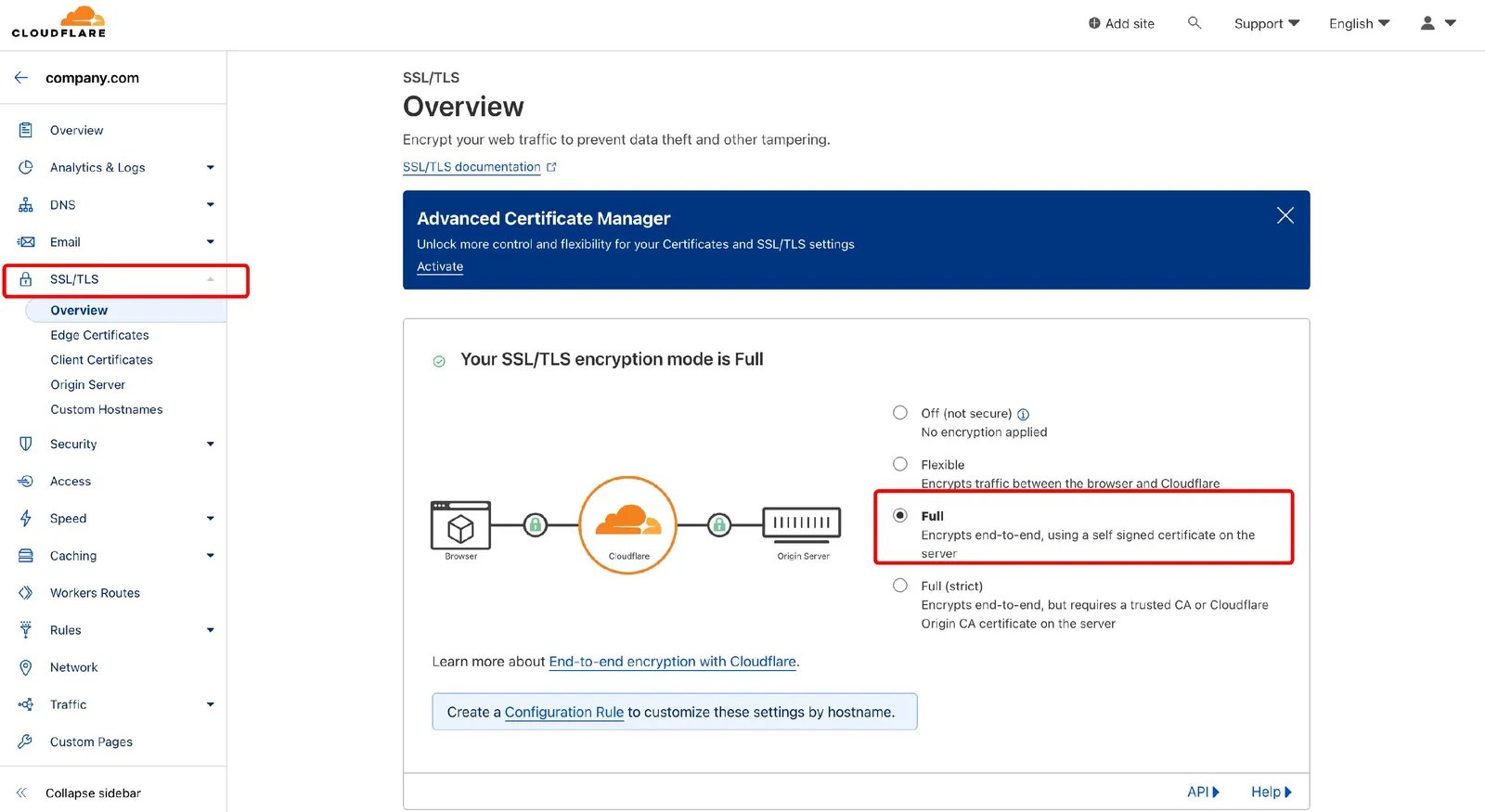
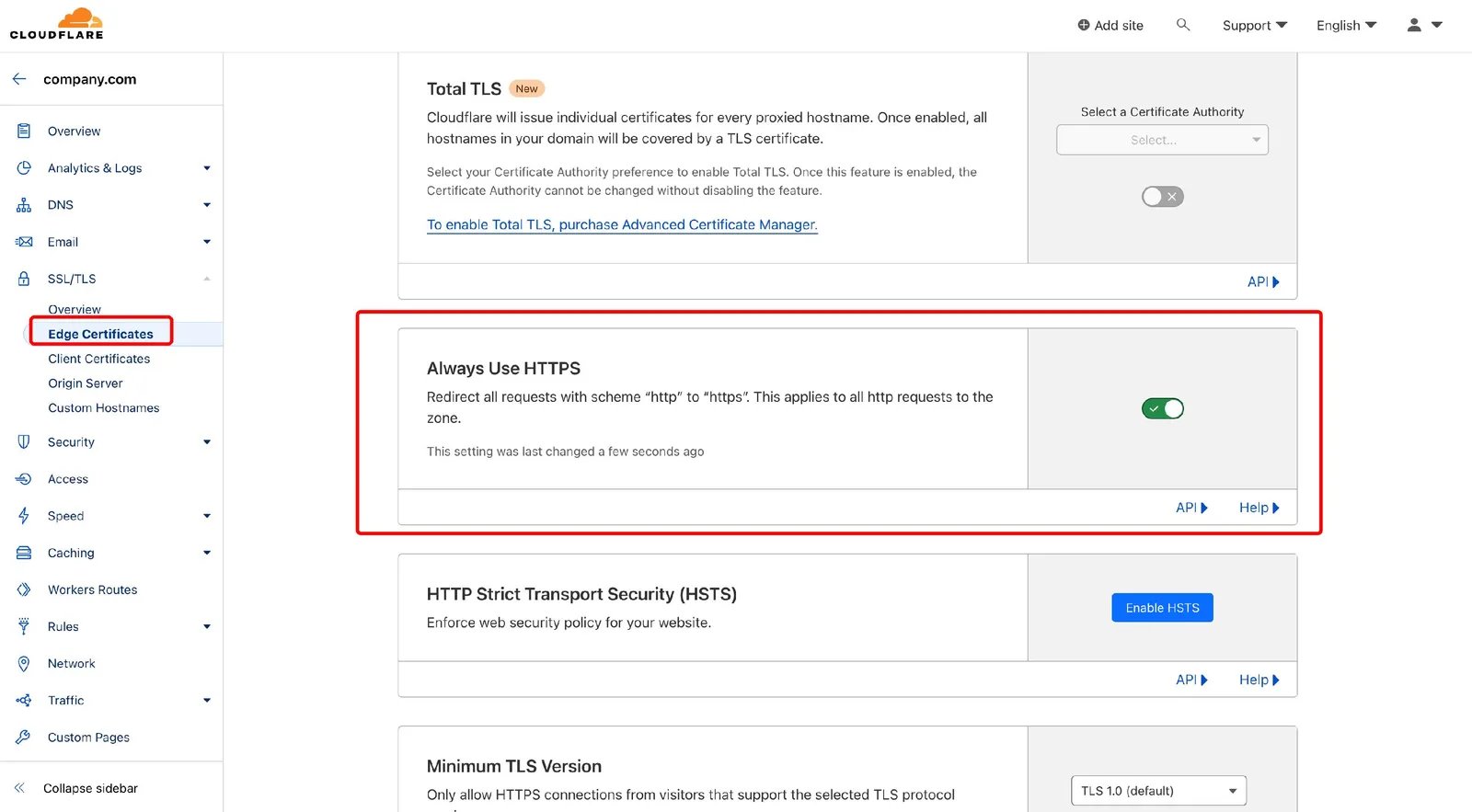
Set the following in Cloudflare for each custom domain:- DNS record: Proxied
- SSL/TLS encryption mode: Full
- Edge Certificates → Always Use HTTPS: On, to redirect HTTP to HTTPS
Add the domains to the platform
1
Interface domain
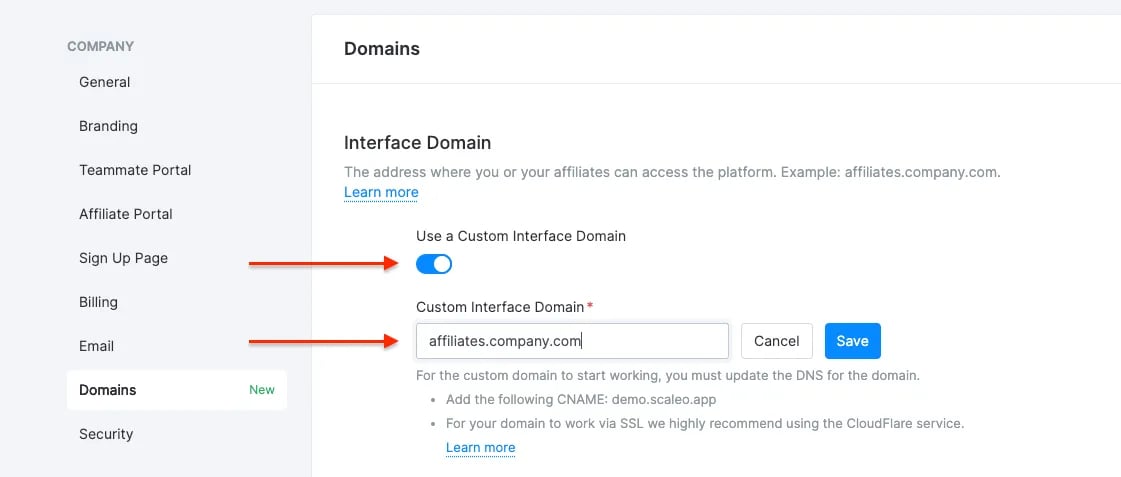
Go to Settings → Domains, enable Use a Custom Interface Domain, enter
your domain and click Save.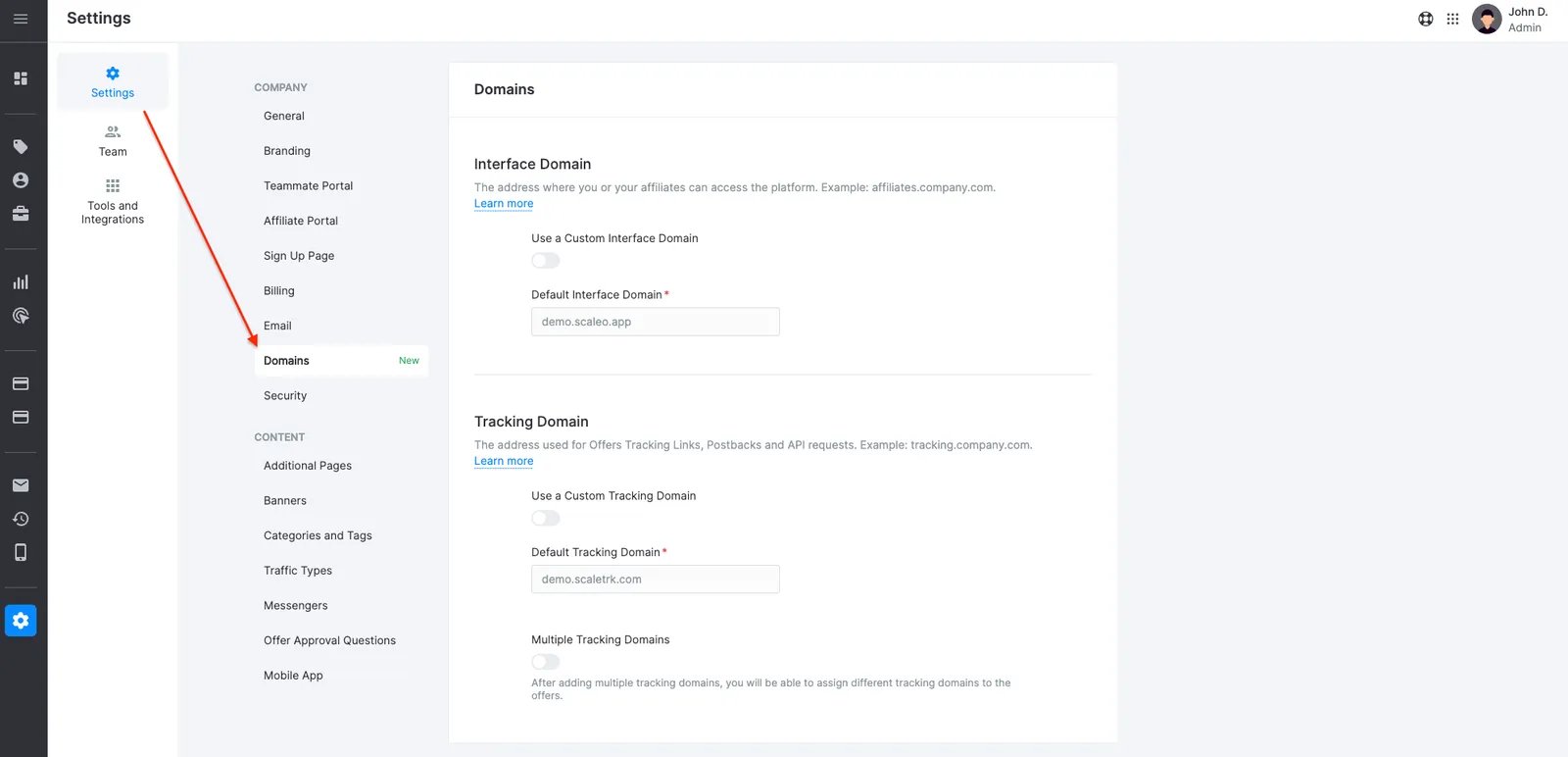
2
Tracking domain
Enable Use a Custom Tracking Domain, enter your domain and click Save.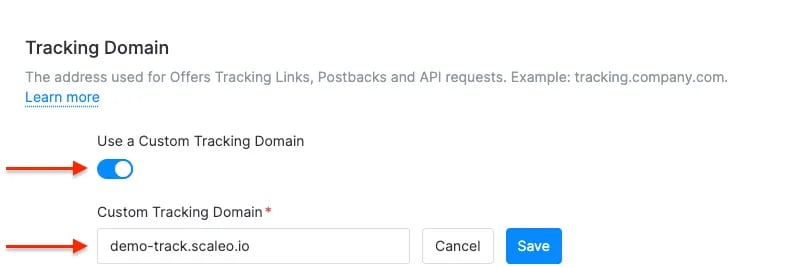
Multiple tracking domains
To use two or more tracking domains, enable Multiple Tracking Domains. A Multiple Tracking Domains tab appears on the Domains page, where you can see the added domains, add new ones, set one as the default and delete the ones you no longer need.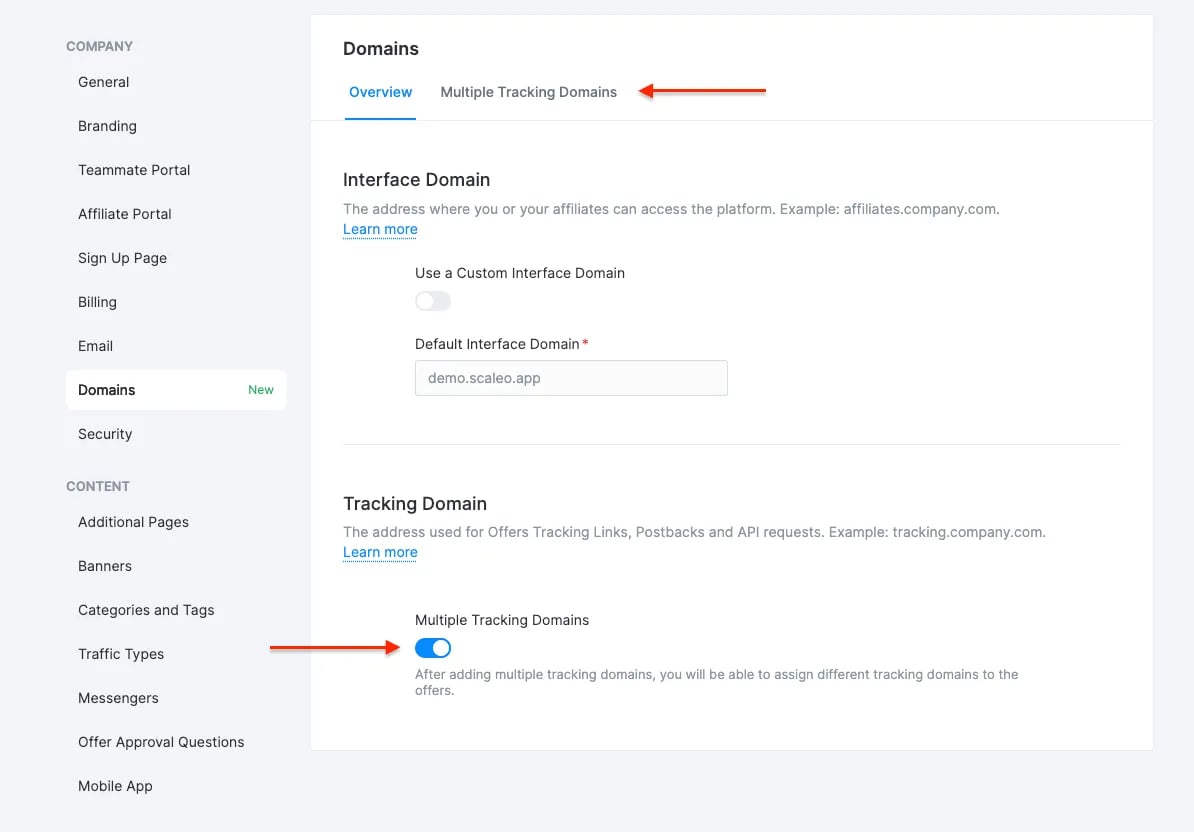
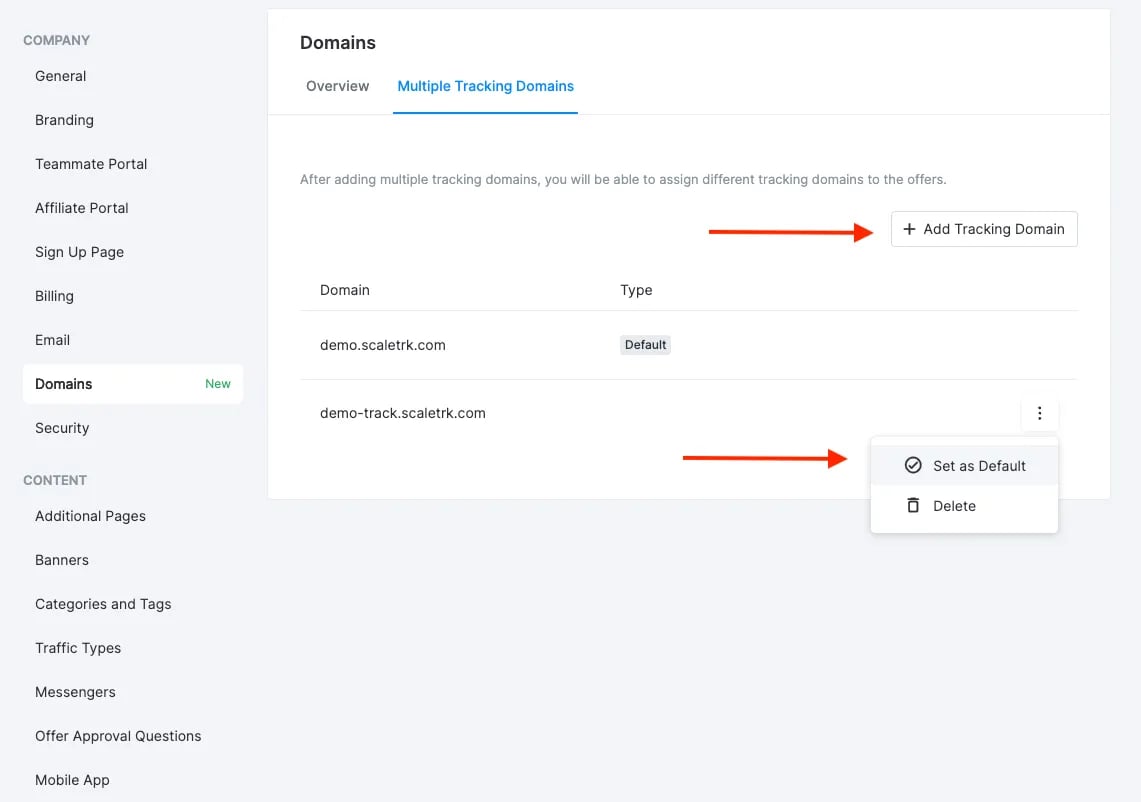
Multiple tracking domains are available from the Enterprise plan. Custom
tracking domains and affiliate domains share one limit: with 3 active affiliate
domains on Enterprise you can add 2 tracking domains. Domains above the limit
can be added for an additional fee.